
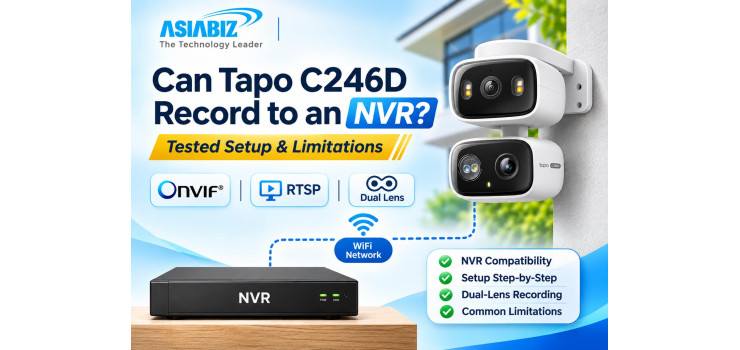
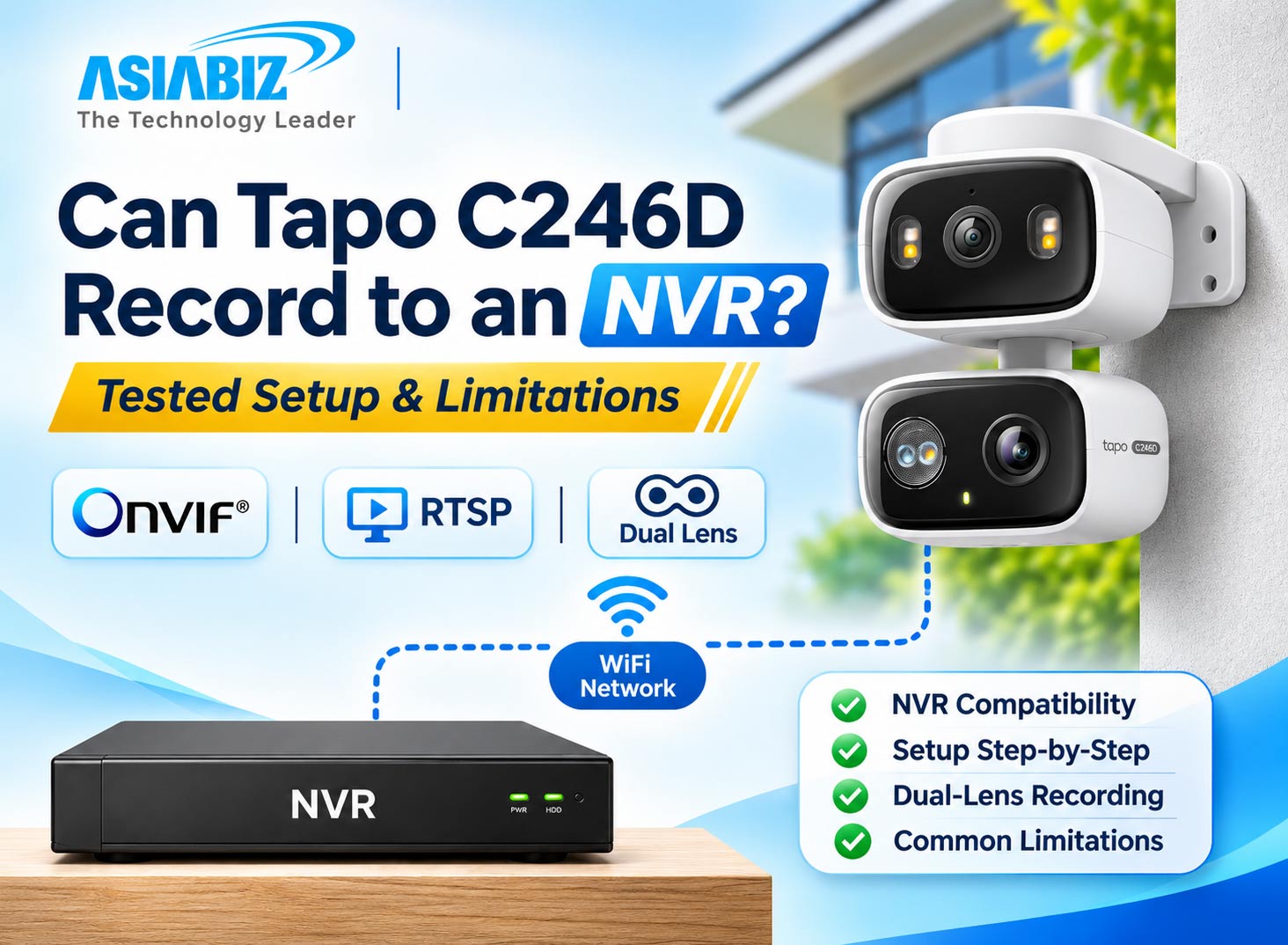
Can Tapo C246D Record to an NVR? Tested Setup and Limitations
The TP-Link Tapo C246D 3MP Dual Lens WiFi IP Camera
is an interesting security camera for homes, offices and small businesses in
Bangladesh. Unlike traditional single-lens WiFi cameras, it combines a fixed
wide-angle camera with a motorised pan-and-tilt telephoto camera, allowing
users to monitor two perspectives from one device.
But many buyers have an important question before
purchasing:
Can the Tapo C246D connect to an NVR for continuous recording?
The answer is yes, with some important limitations.
The Tapo C246D supports ONVIF and RTSP, two widely
used technologies that allow compatible IP cameras to communicate with
third-party recording systems. However, connecting a dual-lens Tapo camera is
not always as straightforward as adding a conventional single-lens IP camera.
In this guide, Asiabiz Technology explains the
manufacturer's documented setup, the connection methods to verify during
installation, dual-lens limitations and common troubleshooting steps for users
in Bangladesh.
Can the TP-Link Tapo C246D Connect to an NVR?
Yes. The TP-Link Tapo C246D officially supports
both ONVIF and RTSP protocols, allowing integration with compatible Network
Video Recorders (NVRs), NAS systems and supported recording software.
However, successful recording depends on the NVR's
protocol support, network configuration, authentication settings and available
recording channels.
The C246D offers two separate camera views:
Fixed wide-angle lens: A 3MP camera with a 2.8mm
lens designed to monitor a larger area.
Pan-and-tilt telephoto lens: A second 3MP camera
with a 6mm lens for a closer view and tracking moving subjects.
Although the Tapo app can display both lenses,
third-party NVR functionality is more restricted.
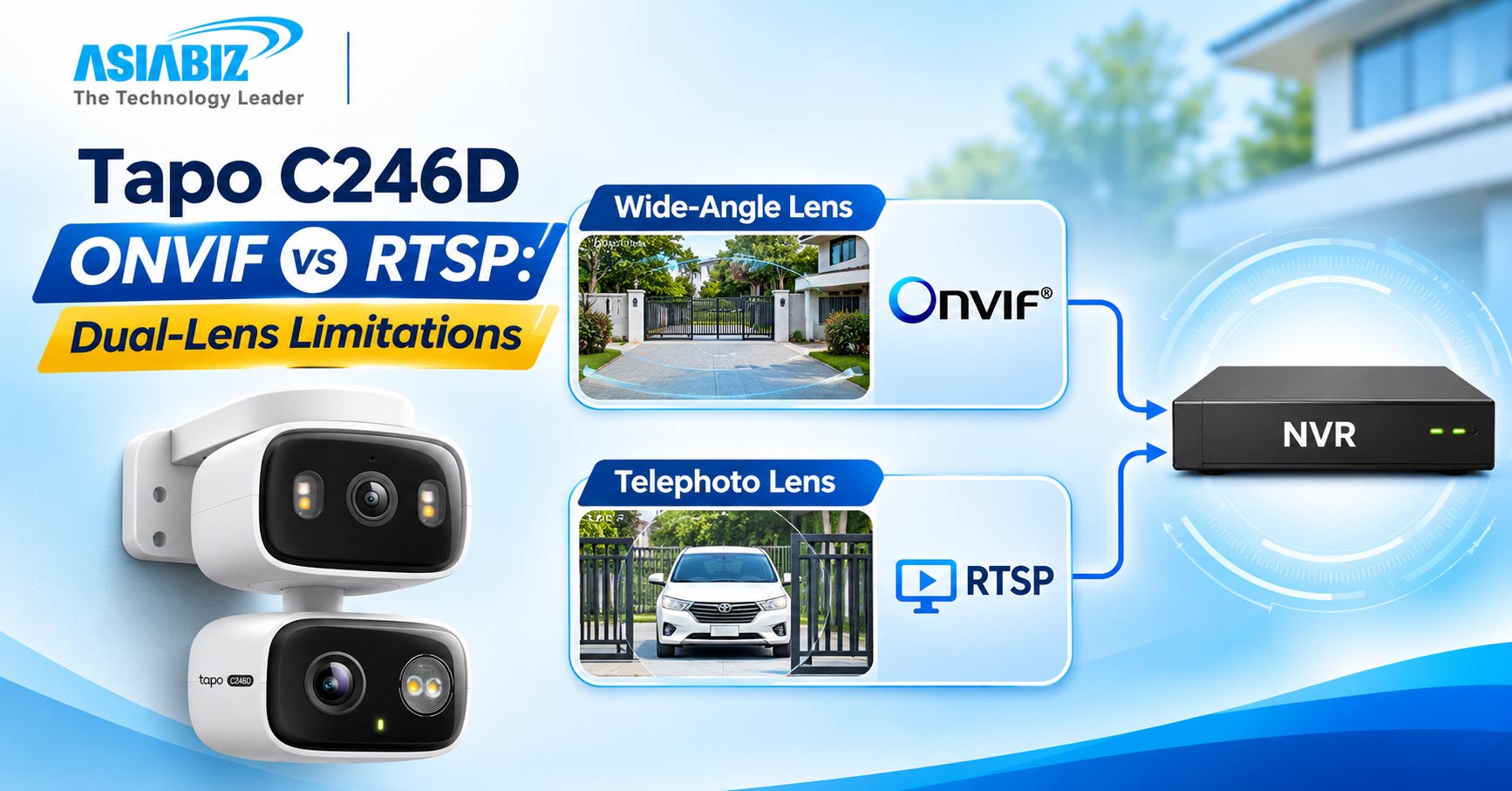
According to TP-Link's support guidance, ONVIF
clients can access the wide-angle lens, while the telephoto lens requires its
separate RTSP stream.
This difference is particularly important for
buyers planning to use the camera as part of an existing CCTV recording system.
Understanding Tapo C246D ONVIF and RTSP Compatibility
Before connecting the camera to an NVR, it helps to
understand what ONVIF and RTSP actually do.
What Is ONVIF?
ONVIF is an interoperability standard used by
compatible IP cameras and network recording equipment.
It allows an NVR to discover and communicate with
supported cameras, obtain video streams and access certain basic functions.
The Tapo C246D supports ONVIF Profile S.
For a compatible NVR, ONVIF is generally the first
connection method worth trying because it simplifies adding a supported camera.
However, ONVIF compatibility does not guarantee
access to every feature available in the manufacturer's mobile application.
For example, the C246D's telephoto lens is not
exposed through its standard ONVIF connection according to TP-Link's
documentation.
What Is RTSP?
RTSP stands for Real-Time Streaming Protocol.
It allows compatible devices and software to
request and display live camera video streams.
RTSP is useful when an NVR supports adding cameras
through a custom streaming URL rather than discovering them through ONVIF.
For the Tapo C246D, RTSP is particularly important
because each lens has its own streaming addresses.
An NVR that supports custom RTSP channels may
therefore be able to record both camera views separately.
However, this must be verified with the particular
NVR model before purchase.
Tapo C246D NVR Compatibility: Quick Overview
|
Feature |
Compatibility |
|
ONVIF support |
Yes, Profile S |
|
RTSP support |
Yes |
|
Wide-angle lens through ONVIF |
Supported |
|
Telephoto lens through ONVIF |
Not supported in documented implementation |
|
Wide-angle lens through RTSP |
Supported |
|
Telephoto lens through RTSP |
Supported |
|
Full NVR-based recording |
Depends on NVR settings and compatibility |
|
Two-way audio through ONVIF |
Not supported |
|
Ethernet connection |
No |
|
Network connection |
2.4GHz WiFi |
|
Power supply |
External 5V DC adapter |
Important: An
NVR may recognise the camera without supporting all of its recording, audio,
motion detection or pan-and-tilt functions.
How to Connect Tapo C246D to an NVR: Step-by-Step Setup
The following installation process uses TP-Link's
published configuration requirements. Menu names may differ depending on the
Tapo app version and NVR manufacturer.
Step 1: Connect the Camera to WiFi
First, install the Tapo C246D using the official
Tapo mobile application.
Connect the camera to a stable 2.4GHz WiFi network
and confirm that both lenses display live footage in the app.
The C246D does not have a built-in Ethernet port,
so it cannot connect directly to the NVR through a LAN cable.
Instead, the camera communicates over WiFi while
the NVR connects to the same local network through its available network
connection.
For reliable recording, position the camera within
a strong WiFi coverage area.
Step 2: Create a Separate Camera Account
For third-party NVR access, TP-Link requires a
camera account that is separate from your normal Tapo account login.
In the Tapo application, open the C246D camera
settings.
Navigate to Advanced Settings → Camera Account and create
a username and password.
Use these credentials when adding the camera to the
NVR.
Your regular Tapo app login details should not be
substituted for the dedicated camera account.
Choose a strong password and keep the credentials
secure.
Step 3: Find the Camera's Local IP Address
Next, identify the local IP address assigned to the
Tapo C246D by your WiFi router.
You can find the address through the camera's
device information or the router's connected-device list.
For example, a local camera address might look
like:
192.168.1.105
This is only an example. Use the actual address
assigned to your camera.
For a permanent installation, consider creating a
DHCP reservation in your router so the camera keeps the same local IP address.
Step 4: Add the Camera Using ONVIF
Open your NVR's camera management settings.
Look for an option such as Add IP Camera, Manual
Add or Camera Registration.
Enter the following details:
Protocol: ONVIF
IP address: The
camera's local IP address
ONVIF
service port: 2020
Username: Your
Tapo camera account username
Password: Your
Tapo camera account password
Save the settings and check whether the NVR can
display the camera stream.
If successful, the wide-angle lens should become
available through the ONVIF connection.
Do not assume the telephoto lens will automatically
appear as a second channel.
Step 5: Configure Recording on the NVR
After connecting the camera, open the NVR's
recording settings.
Depending on the recorder, you may be able to
configure continuous recording, scheduled recording or event-based recording.
Select the available recording mode, storage
destination and retention settings.
Then perform a practical verification:
Confirm that live video appears on the NVR.
Enable recording on the selected channel.
Leave the camera recording for several minutes.
Open NVR playback and locate the saved footage.
Check timestamps, video quality and audio
availability.
A camera appearing online does not automatically
mean the NVR is successfully saving footage.
Playback verification is essential.
How to Access Both Tapo C246D Lenses Using RTSP
One of the most important technical details is that
the C246D has separate RTSP addresses for its two lenses.
TP-Link documents the following stream paths.
Wide-Angle Lens RTSP URLs
High-quality stream:
rtsp://CAMERA_IP:554/stream1
Standard-quality stream:
rtsp://CAMERA_IP:554/stream2
Telephoto Lens RTSP URLs
High-quality stream:
rtsp://CAMERA_IP:554/stream6
Standard-quality stream:
rtsp://CAMERA_IP:554/stream7
Replace CAMERA_IP with your camera's actual local
IP address.
When required by the client, provide your dedicated
camera account credentials.
For example, a complete authenticated URL may
follow this structure:
rtsp://USERNAME:PASSWORD@CAMERA_IP:554/stream6
Use the URL only on trusted devices and avoid
sharing credentials publicly.
An NVR supporting custom RTSP stream entry may be
able to use one recording channel for the wide-angle view and another for the
telephoto view.
However, not every recorder supports adding
multiple streams from one physical camera as separate recording channels.
Confirm this capability before purchasing a new
NVR.
Important Tapo C246D NVR Recording Limitations
Although the C246D supports third-party
integration, several limitations deserve attention.
1. ONVIF Does Not Provide Both Lens Views
This is the most significant limitation for
dual-lens recording.
The C246D's documented ONVIF connection provides access
to the wide-angle camera.
The motorised telephoto camera requires separate
RTSP access.
If your NVR only allows automatic ONVIF camera
discovery and does not accept custom RTSP streams, recording both views may not
be possible.
2. Tapo App Features May Not Transfer to the NVR
The Tapo C246D offers features such as smart
tracking, detection alerts and one-tap smart focus.
However, these features should not automatically be
assumed to work through a third-party NVR.
For example, the camera may perform its own smart
tracking while the NVR records the resulting video, but the NVR may not provide
the same tracking controls as the Tapo app.
Motion detection events and recording triggers also
depend on the recorder's compatibility.
3. Two-Way Audio Is Not Supported Through ONVIF
The camera includes a built-in microphone and
speaker for two-way communication through supported applications.
However, TP-Link's ONVIF Profile S implementation
does not support two-way audio through third-party ONVIF clients.
Depending on compatibility, an NVR may receive
audio from the camera without providing two-way communication.
4. Recording and Storage Features Have Limits
TP-Link states that only two of these three
recording options can operate simultaneously on supported Tapo cameras:
Tapo Care recording
Local microSD recording
Third-party NVR/NAS recording
If all three are configured, third-party recording
may become unavailable.
For an NVR-focused installation, review and adjust
local storage and cloud recording settings as needed.
5. WiFi Stability Affects Recording Reliability
Unlike a wired PoE IP camera, the C246D relies on
2.4GHz WiFi.
Weak coverage, signal interference or router
interruptions may affect recording reliability.
For small homes and shops, WiFi may be sufficient
if network conditions are stable.
For larger warehouses and security-critical
installations, wired PoE cameras can offer a more predictable network
connection.
Common Tapo C246D NVR Problems and Solutions
NVR Cannot Detect the Camera
Check that the camera and recorder can communicate
across the local network.
Confirm the camera's IP address, ONVIF port 2020 and
camera account credentials.
Also check whether your router has guest-network
isolation or other settings that prevent local devices from communicating.
Camera Is Online but Does Not Record
Review the NVR's recording schedule, channel configuration
and available storage.
Check whether microSD and Tapo Care recording
settings are affecting third-party recording.
Then verify playback instead of relying only on the
camera's online status.
Only One Camera Lens Appears
This is a documented ONVIF limitation.
Use the separate telephoto RTSP stream if your NVR
supports custom RTSP channel configuration.
If the recorder cannot add a second stream, both
views may not be available through that recorder.
RTSP Stream Keeps Disconnecting
Check WiFi signal strength, network congestion and
camera power.
Try a lower-quality stream for troubleshooting and
confirm that the NVR supports the camera's video encoding.
Restart the camera and recorder if necessary, and
check for firmware updates.
Is Tapo C246D Suitable for NVR Recording in Bangladesh?
The Tapo C246D can be a practical choice for
homeowners and small businesses that want dual-lens WiFi monitoring with the option
of third-party recording.
Possible applications include residential
entrances, small shops, offices and covered or exposed outdoor areas where WiFi
coverage and electrical power are available.
However, if your main requirement is guaranteed
dual-channel NVR integration, advanced NVR-based PTZ control or reliable wired
connectivity, a conventional ONVIF-compatible PoE IP camera may be the better
choice.
Before buying, check the exact NVR model and
confirm that it supports the required ONVIF or RTSP configuration.
Where to Buy TP-Link Tapo C246D in Bangladesh
If you are considering the Tapo C246D for your home
or business, Asiabiz Technology offers the camera alongside other WiFi and IP
surveillance solutions.
The camera provides two separate 3MP views, smart
tracking and flexible mounting options, making it attractive for buyers who
want broad and detailed monitoring from one device.
However, buyers planning NVR integration should
confirm their recorder's compatibility before installation.
Explore the TP-Link Tapo C246D 3MP Dual Lens WiFiIP Camera for specifications and current pricing.
You can also browse TP-Link WiFi cameras in
Bangladesh or visit Asiabiz Technology for more security camera options.
Showroom: 208–209, Level-2, ECS Computer City
(Multiplan Center), New Elephant Road, Dhaka.
Frequently Asked Questions (FAQs)
Q: Can Tapo C246D Record 24/7 to an NVR?
A: Yes,
a compatible NVR can be configured for continuous recording using the camera's
supported video streams. Recording reliability depends on network stability,
NVR compatibility and storage settings.
Q: Does Tapo C246D Support ONVIF?
A: Yes.
The Tapo C246D supports ONVIF Profile S, but its standard ONVIF connection does
not expose both lens views.
Q: Can Both Tapo C246D Lenses Record to an NVR?
A: Potentially,
yes. Both lenses offer separate RTSP streams. However, the NVR must support
adding and recording the streams, potentially as two separate channels.
Q: Does Tapo C246D Have an Ethernet Port?
A: No.
The C246D connects through 2.4GHz WiFi and requires an external power adapter.
Q: Can Tapo C246D Work With Dahua or Hikvision NVRs?
A: It
may work with compatible models that support the necessary ONVIF or RTSP
connections. However, brand-level protocol support is not a guarantee of full
compatibility. The exact NVR model, firmware and recording features should be
checked.
Q: Is a microSD Card Required for NVR Recording?
A: No. A
compatible NVR can store recordings on its own storage system. A microSD card
is not required solely for NVR recording.
Q: Can Tapo C246D Record Without Internet?
A: Local
recording through a compatible NVR may continue without internet access if the
camera, WiFi network, NVR and local power remain operational. Remote cloud
features may be unavailable.
Final Verdict: Should You Connect Tapo C246D to an NVR?
The TP-Link Tapo C246D can connect to compatible
NVR systems through ONVIF and RTSP, making it a flexible security camera for
selected home and small-business installations.
However, its dual-lens architecture creates
limitations that buyers must understand.
The wide-angle lens supports ONVIF access, while
the telephoto lens requires its dedicated RTSP stream. Some smart features and
two-way communication functions may also remain available only through the Tapo
application.
For users in Bangladesh who need a dual-lens WiFi
camera with optional NVR recording, the C246D is worth considering.
For applications where uninterrupted wired
connectivity and full recorder integration are essential, a dedicated PoE CCTV
system may be more suitable.
Before purchasing, verify your NVR's compatibility,
test the required streams and confirm that recorded footage can be played back
successfully.
Choosing the correct setup from the beginning can help avoid installation problems and ensure your security system meets your actual recording requirements.


Comments
There are no comments for this Article.